Basic Guide
Everything you need to get started - from app installation to calendar connections.
Install App (PWA)
Add to home screen without app store
- 1
Go to syncalendars.com in Safari
Please use Safari, not Chrome
- 2
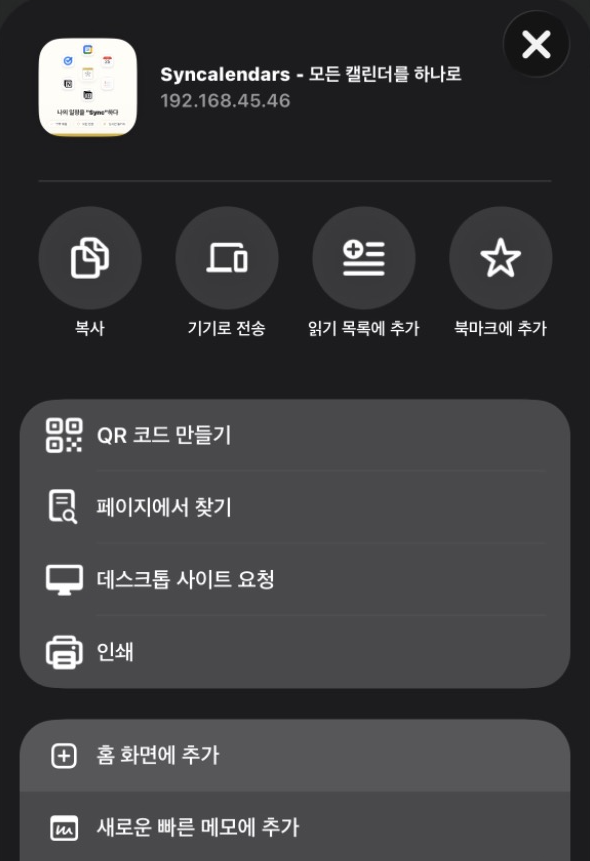
Tap the share button (□↑) at the bottom
- 3
Select "Add to Home Screen"
- ✓
Done! Use like an app from home screen

- 1
Go to syncalendars.com in Chrome
- 2
Tap menu (⋮) at top right
- ✓
"Install app" or "Add to Home Screen"
- 1
Click install icon (⊞) right of address bar
- ✓
Click "Install" → Done!

Connect Calendars
How to connect Google, Apple, and Notion
- Click "Connect Google Calendar" on dashboard
- Sign in to Google & allow permissions
- Connection complete!

- Click "Connect Notion" on dashboard
- Select workspace & allow access
- Select "Allow access to all pages" or choose specific pages
- Choose database to sync

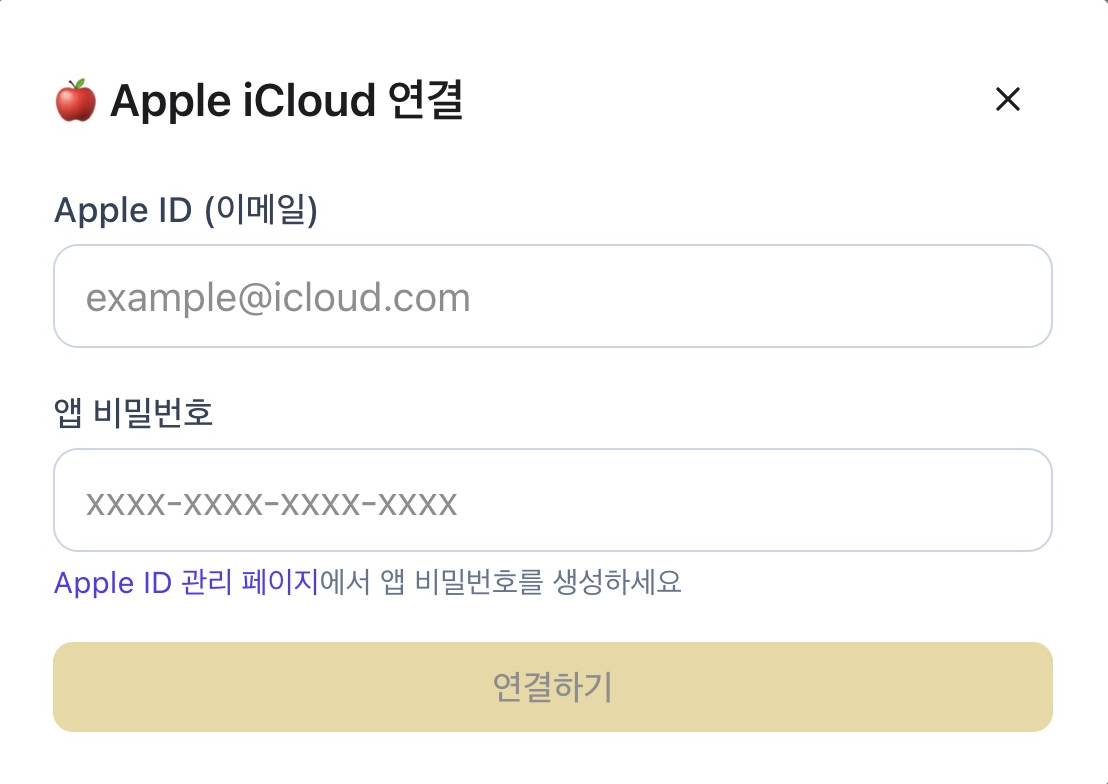
- Create app-specific password at appleid.apple.com
- Enter Apple ID + app-specific password on dashboard
Sync Settings
Configure sync direction and interval
🔄 Sync Direction
↔️ Bidirectional Sync
Changes sync both ways across all calendars
→ Unidirectional Sync
Changes only flow from one calendar to another
⏱️ Sync Interval
Auto-syncs every 15 minutes
FAQ
Get your questions answered
- Check if connected account is valid
- Click "Manual Sync" button in settings
- Try disconnecting and reconnecting
Yes! Events from past 30 days to future 90 days sync from connection time. Events outside this window remain in each calendar but stop syncing bidirectionally. (Events are not deleted)
All data is encrypted in transit, and we don't store passwords directly using OAuth.