Complete Pro Guide
Advanced features for Notion power users. Learn everything about field mapping, color sync, and real-time sync.
Why Pro?
Manual Management
Copy & Paste Events
Notion → Google manual input
30+ min/day spent
Checking & syncing calendars
Risk of missed events
Human error during manual work
Full Automation
Auto bidirectional sync
Notion ↔ Google ↔ Apple
5-min real-time sync
Changes reflected instantly
Field & color mapping
Auto color by status
Pro saves you 30 minutes daily
$14.99/mo = $0.50/day • Less than a coffee
Sync Architecture
Notion Field Mapping Setup
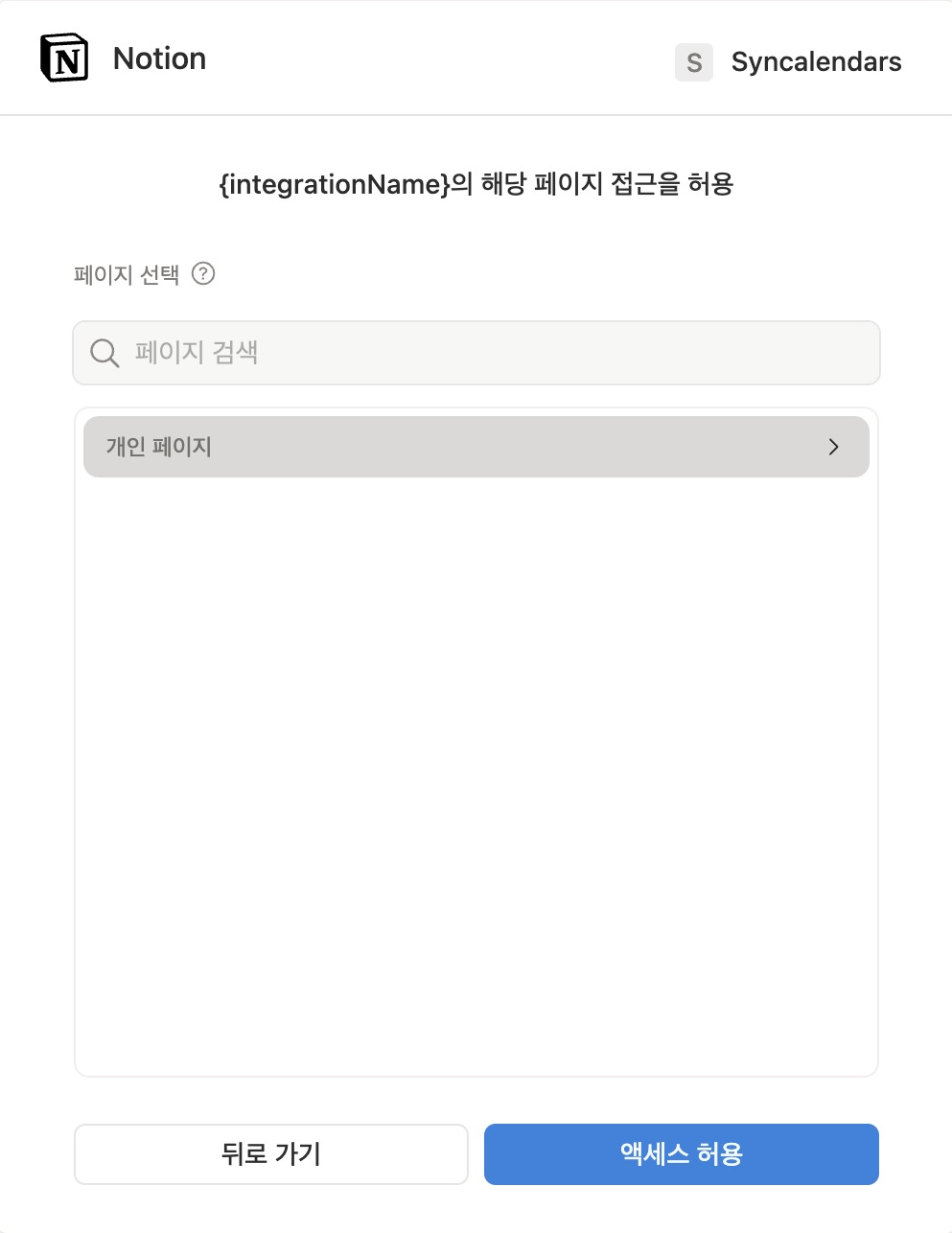
Pro OnlyConnect Notion
Click 'Connect Notion' on the dashboard and allow workspace access.
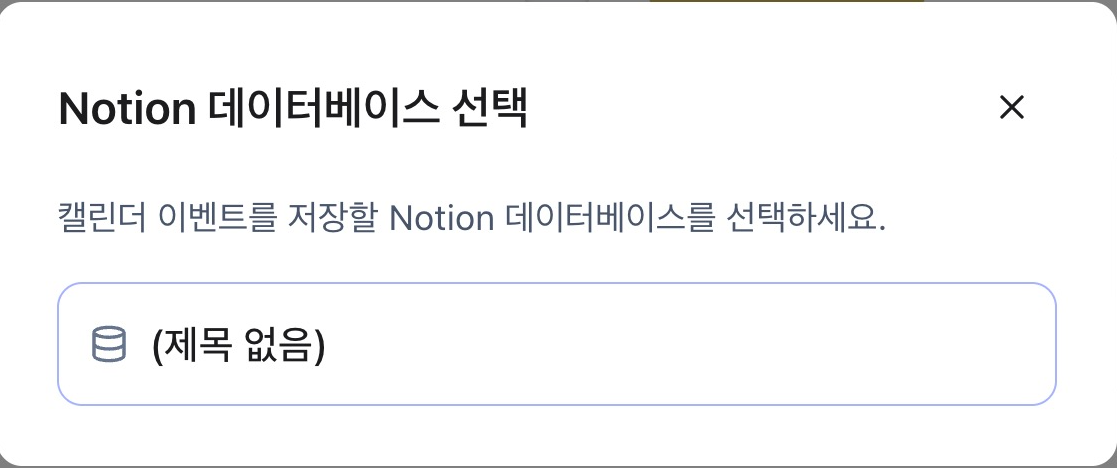
Select Database
Choose a Notion database to sync. It must have a Date property.
Configure Field Mapping
Map Notion properties to calendar fields. You can link title, date, description, color, etc.
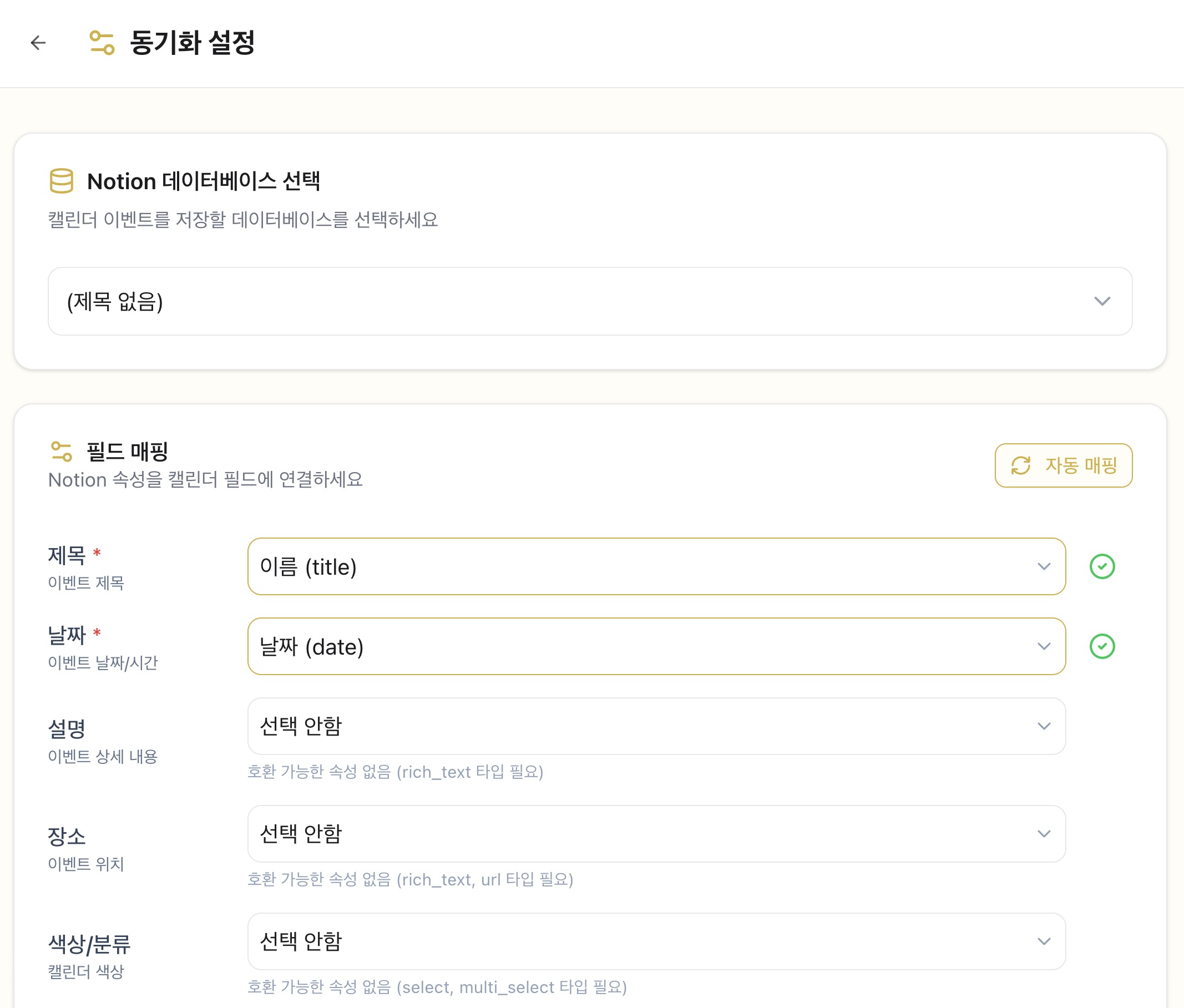
Sync Complete
Once configured, sync runs automatically every 5 minutes. Manual sync is also available.
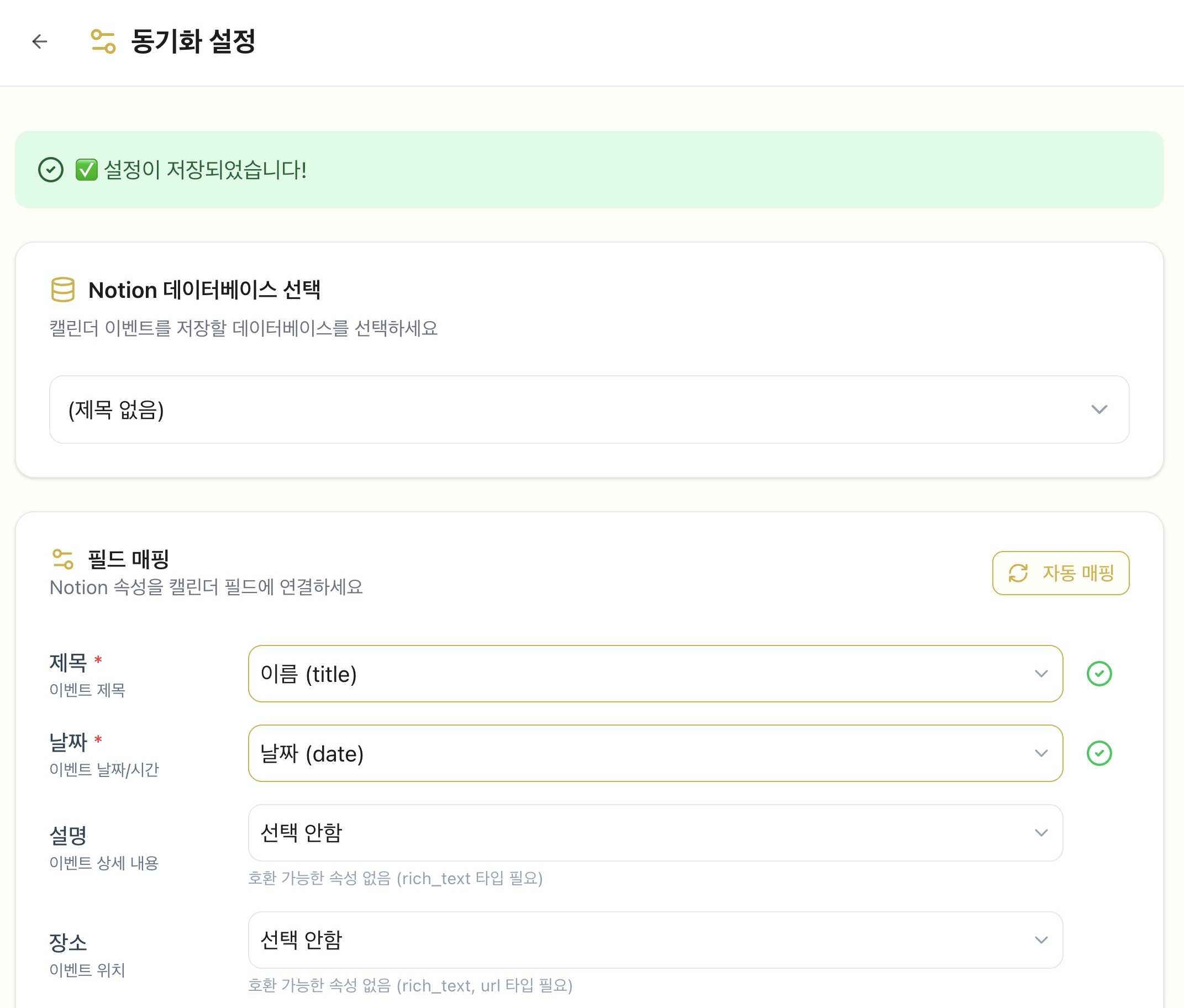
Setup Complete!
Your Notion and calendar are now syncing in real-time.
Auto Color Mapping
Auto Color Mapping
Notion Status → Calendar Event Color
💡 Tip: When you change a status in Notion, the calendar event color updates automatically.
Real-time Sync
15min
Sync interval
5min
Real-time sync
Use Cases
Freelancer
Manage multiple client schedules
Manage client projects in Notion while viewing all events in Google Calendar at a glance
Workflow
Team Leader
Share team project schedules
Auto-sync team Notion workspace schedules to everyone's calendar
Workflow
Personal User
Combine work + personal schedules
Unify work Google Calendar, personal Apple Calendar, and Notion in one place
Workflow
Pro Tips
🎨 Use Status Colors
Map Notion statuses (In Progress, Done, Urgent) to calendar colors to see priority at a glance.
📁 Database Per Project
Create separate Notion databases for each project for better organization.
🔄 Bidirectional vs Unidirectional
Use bidirectional for main calendar, unidirectional for shared calendars to prevent unwanted edits.
⚡ Manual Sync Button
For urgent events, don't wait 5 minutes - use the "Manual Sync" button on dashboard.
Ready to start with Pro?
7-day free trial, then $14.99/month for all Pro features